Your Input Matters
Review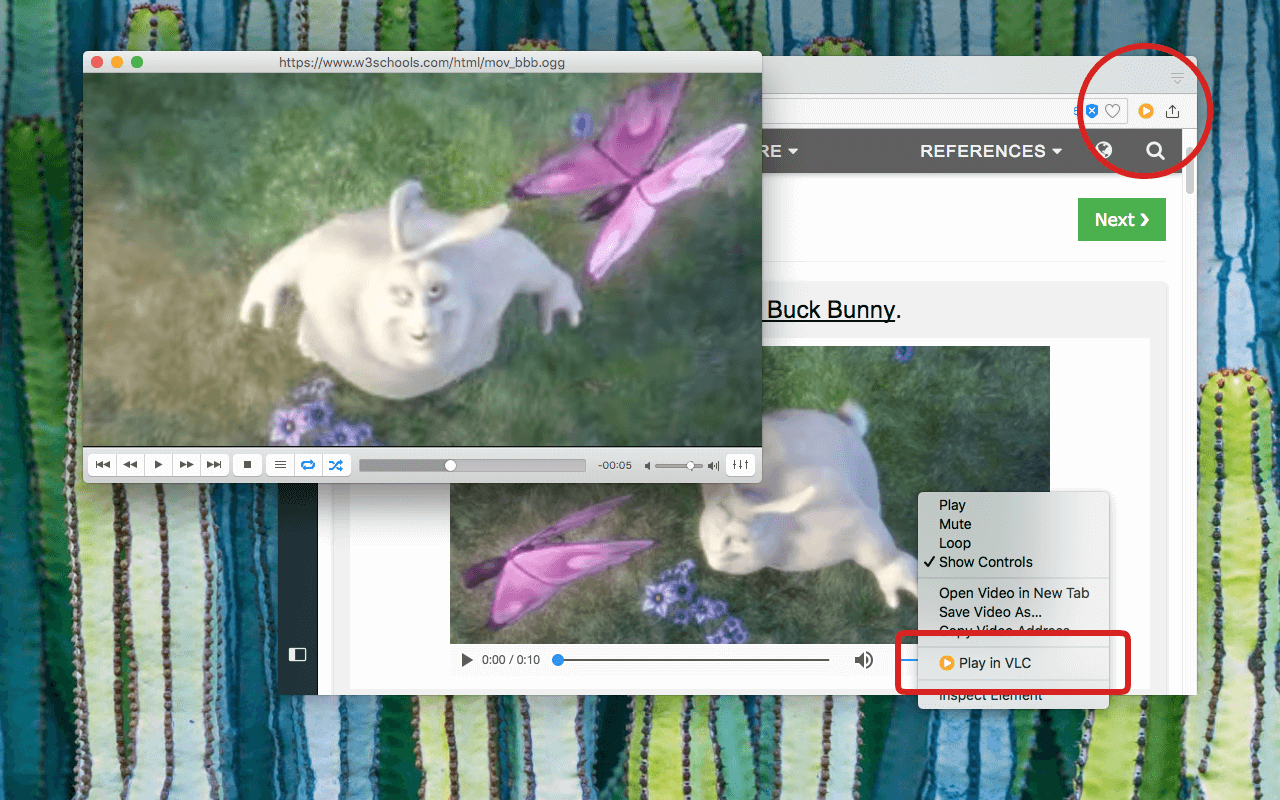
| Advertisements |
What is "Play in VLC" extension and how does it work?
This extension comprises two modules: the media observer and native integration. The media observer module identifies all streamable media sources from web pages and keeps users informed by updating the badge text accordingly. This module stores up to 200 media sources; if a page exceeds this limit, the oldest media files are wiped. Upon detecting the first media source, the page's badge text switches to "1". Notably, if no media source is found for a page, the page's URL is forwarded to the external player (some players like VLC know how to find streamable media from certain websites).
The native integration module relies on @andy-portmen's NodeJS native-client. This straightforward yet potent native client enables developers to embed all native code within the extension, allowing for code review without the need to inspect native code for each operating system. Essentially, the native side receives the script from the extension and executes it in a sandboxed context with predefined limited permissions. Detected links are then transmitted to the native player. Users can access the options page to customize how the extension interacts with the native side.
Available extensions:
recommended "2FA (Two Factor Authentication)" extension for Chrome, and Edge browsers.
2FA (Two-Factor Authentication) is an Aegis-compatible browser extension for managing TOTP and HOTP codes. It stores your tokens in an encrypted Aegis database file on your device instead of browser storage, making it easy to sync across devices with any file-sharing service. The database uses the same strong encryption as Aegis Authenticator and is fully compatible with the Aegis Android app. You can create, edit, organize, and delete tokens, customize their details and icons, and use keyboard shortcuts for faster access. Read more here.
How can I install the native-client?
When the extension attempts to execute the first native command, a new local page appears, guiding you through the steps to set up the native client. The native client installation is essential as the extension alone cannot interact with the operating system. To manually install the native-client, visit Emano-Waldeck/native-client. On this page, you'll find three compressed files tailored for Windows, Linux, and macOS. As of now, ChromeOS and Android operating systems are not supported by the native client.
Once downloaded, the package contains three files:
install.js script.app.js script.If your system lacks the global NodeJS executable, this executable will be copied during installation. Otherwise, only the app.js script and configuration files for Chrome and Firefox will be copied (ensure that your installed NodeJS executable version is higher than 6.0.0). The install.js script copies a few files into various directories. You can review the list of files and their locations in the console output.
To uninstall the native client, use the provided uninstall script located in the root directory. This script will remove the native client from your operating system.
How does this extension differ from the "Open In" extension created by @andy-portmen?
What's new in this version?
Please check the Logs section.
[deprecated] What is the purpose of the advanced settings on the options page, and why are they not editable?
Advanced settings are meant for experienced users. Due to the potential for unexpected outcomes when modified, they are not directly editable. However, users can override these settings using the background console window. For instance, if there's an advanced option named pref-1, you can adjust it by accessing the background console window and entering localStorage.setItem('pref-1', 'new value');
How can I test this extension?
Begin by accessing the w3schools.com/html/html5_video.asp page in a browser tab and allow the media to initiate the player. Once playback commences, observe the appearance of a badge number for this extension. Note that the extension toolbar button (action button) might be hidden in the extensions menu. If so, you can pin it to the toolbar area. You can then either click on the action button to transmit the media sources to the external player or right-click on the video element and choose the "Send to VLC" option. Alternatively, right-click the action button to copy the link of detected media streams to the system clipboard.
Please keep reviews clean, avoid improper language, and do not post any personal information. Also, please consider sharing your valuable input on the official store.
| Permission | Description |
|---|---|
| storage | to store user preferences |
| notifications | to notify about extension and external application error logs (it is possible to disable it from the options page) |
| nativeMessaging | to be able to communicate with the external executable. The native-client is NodeJS based |
| contextMenus | to add context menu items to the toolbar button and audio and video elements |
| *://*/* | to be able to inject media observer into all web pages |


